On this page
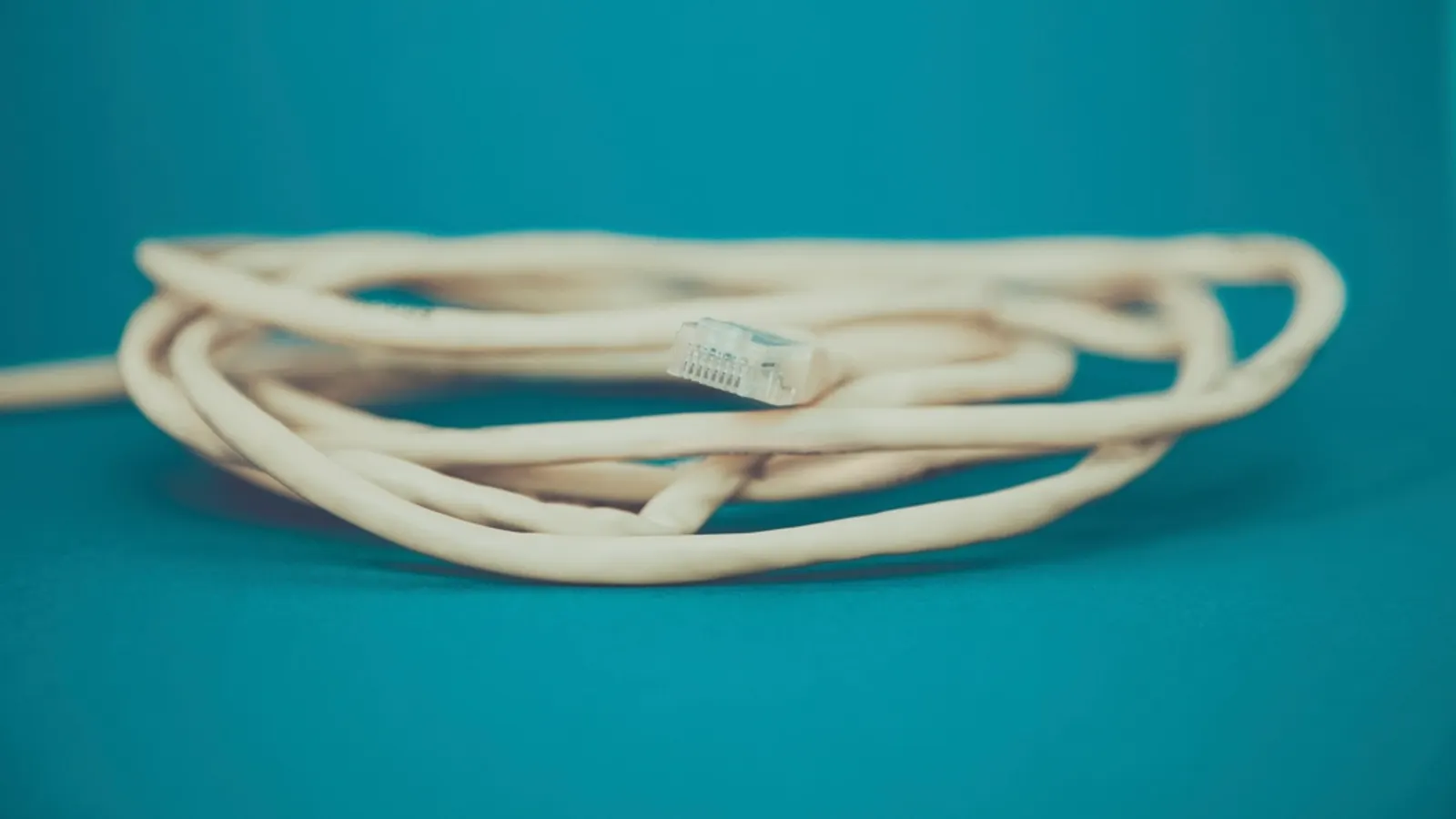
If you only change one thing about your IPTV setup, make it this: plug the streaming device into your router with a cable. It fixes more buffering than any app setting, and it costs almost nothing.
Why wired wins for live TV
Wi-Fi shares the air with your neighbours' networks, microwaves, Bluetooth and every other device in your home. Speed swings up and down, and occasionally drops out for a split second. On-demand apps hide this by downloading well ahead. Live IPTV can't buffer far ahead, so those drops show up as freezes.
Ethernet has none of those problems. The speed you get is the speed you keep.
How much speed you need
| Stream | Rough steady speed needed |
|---|---|
| SD | 3 to 4 Mbps |
| HD (720p/1080p) | 8 to 10 Mbps |
| 4K | 25 Mbps or more |
These are rules of thumb that vary by service and codec. Multiply by the number of TVs watching at once, and leave headroom for everything else in the house.
When your device has no Ethernet port
- Fire TV Stick: Amazon's Ethernet adapter plugs into the power port.
- Chromecast with Google TV: Google sells a power adapter with an Ethernet port.
- Other sticks: many USB-C or micro-USB Ethernet adapters work, as long as they also pass through power.
When the router is in another room
Running a long cable isn't always possible. In order of what we'd try:
- MoCA adapters use your existing coax TV cables. Very reliable if you have coax in the right rooms.
- Powerline adapters send the network through your electrical wiring. Performance depends on the wiring, so buy from a store with an easy return policy.
- A mesh Wi-Fi node near the TV, connected to the streaming device with a short Ethernet cable. You get a strong local signal without wiring the whole house.
- Flat Ethernet cable along skirting boards or under rugs. Unglamorous, but it works.
If you stay on Wi-Fi
- Use the 5 GHz band, or 6 GHz if your router and device support Wi-Fi 6E or 7.
- Keep the streaming stick out of cabinets. An HDMI extender cable can move it away from the metal back of the TV.
- Update your router's firmware, and restart it occasionally.
Quick test: temporarily move the router next to the TV, or the TV device next to the router, and watch the channel that usually buffers. If it plays perfectly, you've found your problem.
More fixes in IPTV keeps buffering? and device-specific tips in our Fire TV Stick guide.
Frequently asked questions
- Is Ethernet faster than Wi-Fi?
- Not always faster at peak, but far more consistent. Streaming cares about consistency: a steady connection beats a fast one that dips.
- My Fire TV Stick has no Ethernet port. What can I do?
- Amazon sells an Ethernet adapter that plugs into the Stick's power port. Third-party micro-USB and USB-C adapters also work with many sticks.
- Are powerline adapters good for streaming?
- They're a good option when running a cable isn't possible, but performance depends on your home's wiring. Plug them straight into wall sockets, not extension strips.
Written by
Editor
Sam edits IPTVTips and tests players on Fire TV, Google TV and Apple TV. Replace this bio with your real editor's background.
More from Sam

Comments
Sign in to ask a question or share what worked for you.
Sign in to commentNo comments yet. Questions about a step that didn't work for you are welcome.